何老师的济亨网
五笔打字通主页
当前位置:首页 » 程序代码 » 正文
-
以下是读,写沙箱文件的测试代码,需要真机或模拟器测试。
代码里有有读 rawfile 目录文件的代码,请先复制相关文件到 rawfile 目录里,再测试代码。
代码如下:
import { fileIo } from '@kit.CoreFileKit';
import buffer from '@ohos.buffer'
import { promptAction } from '@kit.ArkUI';

//这里是读取文件演示,包括数据data目录和rawfile目录,代码来自 wb98.com
//代码测试请从上往下开始测试。
@Entry
@Component
struct Page13 {
  @State txt1: string = '';
  @State txt2: string = '所有读出的数据都在这里显示';

  build() {
    Column({ space: 10 }) {
      // TextInput({ placeholder: '请输入内容' })
      TextArea({ placeholder: '请输入内容,以备写入沙箱目录里', text: $$this.txt1 })
        .width('80%')
        .height(100)
      // .onChange((value) => {
      //   this.txt1 = value
      // })

      Button('写入数据到沙箱数据目录里')
        .onClick(() => {
          let path = getContext(this).filesDir + '/test.txt' //写入沙箱目录的test.txt文件里
          // let pat2 = getContext(this).applicationInfo.name
          let file = fileIo.openSync(path, fileIo.OpenMode.CREATE | fileIo.OpenMode.WRITE_ONLY | fileIo.OpenMode.TRUNC)
          fileIo.writeSync(file.fd, this.txt1,) //第2参数是写入的内容
          fileIo.closeSync(file.fd)
          promptAction.showToast({ message: '好的' })
        })

      Divider()
        .width(2)
        .color(Color.Red)
        .width('80%')

      Text(this.txt2) //显示数据
        .backgroundColor(Color.Green)
        .padding(10)
        .fontColor(Color.White)
        .height(100)
        .borderRadius(9)

      Divider()
        .width(2)
        .color(Color.Red)
        .width('80%')

      Button('读出沙箱数据目录里的数据')
        .onClick(() => {
          let path = getContext(this).filesDir + '/test.txt'
          let file = fileIo.openSync(path, fileIo.OpenMode.READ_ONLY)
          this.txt2 = fileIo.readTextSync(path)
          fileIo.closeSync(file)
          promptAction.showToast({ message: '好的' })
        })

      Divider()
        .strokeWidth(1)
        .color(Color.Gray)
        .lineCap(LineCapStyle.Round)
        .width('80%')
        .height(20)
        .vertical(false)

      Button('复制rawfile目录的文件到沙箱')
        .onClick(async () => {
          getContext(this).resourceManager.getRawFileContent('test.txt', (_err, value) => { //来源地及文件名
            let myBuffer: ArrayBufferLike = value.buffer;
            let context = getContext(this); //沙箱路径
            let filePath = context.filesDir + '/test.txt'; //复制文件的目的名称
            let file = fileIo.openSync(filePath, fileIo.OpenMode.READ_WRITE | fileIo.OpenMode.CREATE); //打开目的及附权限
            fileIo.writeSync(file.fd, myBuffer); //写入到沙箱,返回文件尺寸
            // let writeLen = fileIo.writeSync(file.fd, myBuffer);//写入到沙箱,返回文件尺寸
            // console.info(' file succeed and size is:' + writeLen);
            fileIo.closeSync(file); //关闭文件
            promptAction.showToast({ message: '好的' })
          });

        })

      Button('读出rawfile目录中的数据') //先在 rawfile 目录里准备好test.txt这个文件
        .onClick(async () => {

          // let rawData = getContext(this).resourceManager.getRawFileContentSync('test.txt')
          // const textDecoder = util.TextDecoder.create('utf-8')
          // this.txt2 = textDecoder.decodeWithStream(rawData)
          //以上代码也成功,只是 decodeWithStream 不推荐了

          const context = getContext(this);
          const codeBuffer = await context.resourceManager.getRawFileContent('test.txt');
          const codeStr = buffer.from(codeBuffer).toString();
          this.txt2 = codeStr
          promptAction.showToast({ message: '好的' })
        })

      Divider()
        .strokeWidth(2)
        .width('80%')

      Button('读出rawfile的文章,再转为数组')  //要先运行上面 '读出rawfile目录中的数据' 的代码,再运行这里的代码
        .onClick(() => {
          //以下代码以回车换行来分割得到的文章内容,把文本文件按行分割成数组。
          let suzu: string[] = this.txt2.split('\n')
          AlertDialog.show({
            message: '你好,这是第一行记录:' + suzu[0] //读出第1条数据
          })
        })


    }
    .height('100%')
    .width('100%')
  }
}
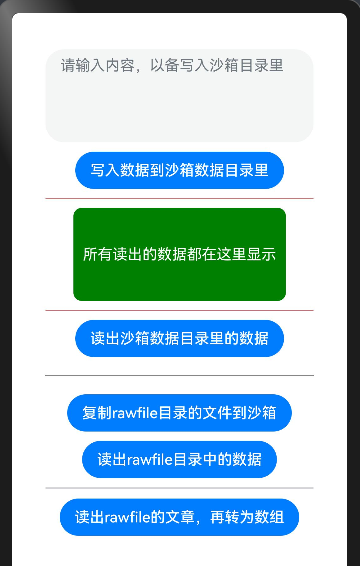
运行截图:
 打赏
打赏 支付宝打赏
支付宝打赏
 微信打赏
微信打赏
来源:济亨网
本文链接:https://www.wb98.com/post/371.html
-
 湘公网安备 43011102000514号